Dashboards

Who can use this feature?
Business and Enterprise Plan
System admin users only
Give your clients and staff a personalised dashboard with quick-link buttons and a banner message. Use it for a welcome message, links to your website or client portal, your latest news, office details or instructions for staff.
You can set up a separate dashboard for clients and for staff. Changes appear automatically for all users, and you can update them as often as you like.
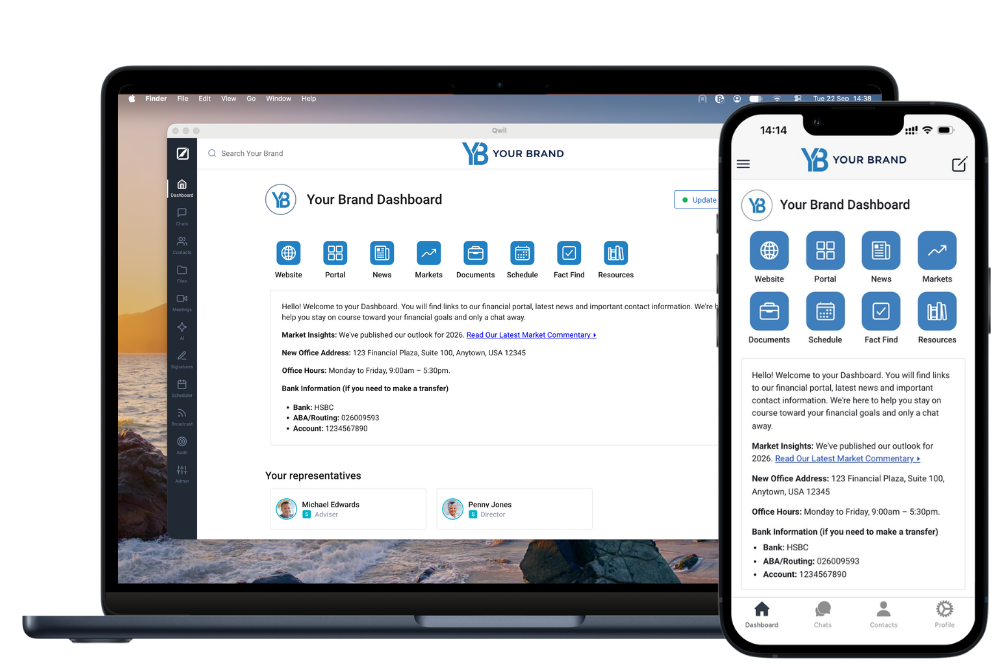 Customise your dashboard for clients and staff
From your desktop, go to Admin.
Under Customisation, click Dashboard.
Under Dashboard for client users or Dashboard for staff users, click Add buttons.
Pick one of our suggested buttons, or click Create my own button and choose an icon, a label and a target URL. Click Save. You can add up to 10 buttons. We recommend 8 - this will appear on two lines on mobile and one full one on web.
To reorder your buttons, click Change Button Order, then drag and drop them.
Click Add banner. Enter a title and your message, then format it with bold, italics, underline, lists, text size and links. Click Save. The title only shows if the message is filled in.
Turn on Enable customised Dashboard for that group. Clients and staff each have their own switch.
Sample Client Dashboard text
Remember to customise all links before applying.
Hello! Welcome to your Dashboard. You will find links to our financial portal, latest news and important contact information. We're here to help you stay on course toward your financial goals and only a chat away.
Market Insights: We've published our outlook for 2026. Read Our Latest Market Commentary ▸
New Office Address: 123 Financial Plaza, Suite 100, Anytown, USA 12345
Office Hours: Monday to Friday, 9:00am – 5:30pm.
Bank Information (if you need to make a transfer)
- Bank: HSBC
- ABA/Routing: 026009593
- Account: 1234567890
Sample Staff Dashboard text
Hello team! Welcome to your staff Dashboard. You will find links to our core platforms, today's priorities and key internal contacts. Everything you need to start the day, all in one place.
Team Update: Q3 client reviews are due by Friday. Open the Review Tracker ▸
Today's Focus: Investment committee meeting at 2:00pm, Boardroom.
IT Support: Message the Operations team in Chats.
Key Contacts
- Operations: ops@yourbrand.com
- Compliance: compliance@yourbrand.com
- IT Helpdesk: ext. 200